Device list and device details
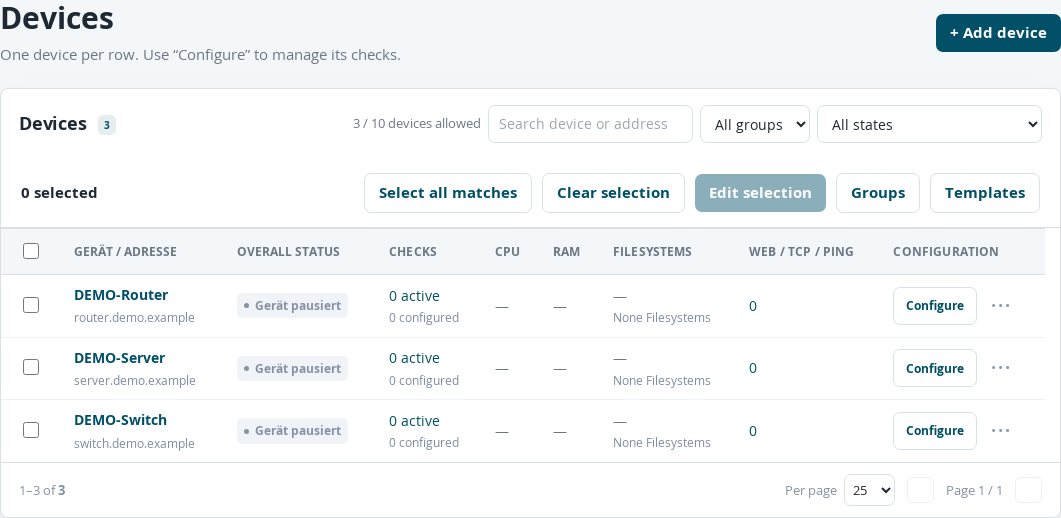
Device list with three paused example devices.
Open Devices.
Use Search device or address to search for a name or address. If necessary, combine the search with the group and status filters.
Select Action required, for example, to narrow the results to checks with a status that needs attention.
Click the device name to open its details.
Check Last check, the overall status and, if applicable, Subchecks requiring attention.
Click a reading display or check name to open the corresponding history.
Select Configure to edit this device’s configuration.
The device-wide Last check value is the most recent result of an active check. It does not confirm that all individual checks are equally up to date. If necessary, check their individual timestamps and statuses as well.
The device list shows the name and address, overall status, number of active and configured checks, and available CPU, RAM and file system values. A dash in place of a reading means that the value is currently unavailable. It is not a measured zero value.
Use the arrows in the table headers to sort each list. Below the table, set Per page and switch pages. Some detail tables use ten entries per page; the device list uses 25 by default. Search and status filters limit the rows displayed; they do not change the stored devices or checks.